Searching
The search panel, its keys, the bigger search window, and what each result tells you.
The search panel
Press ⇧⌘Space on a Mac, or CtrlShiftSpace on Windows and Linux, in any app. Describe what you're looking for, and results come as you type: on the left grouped by kind, on the right the one you've selected, big.
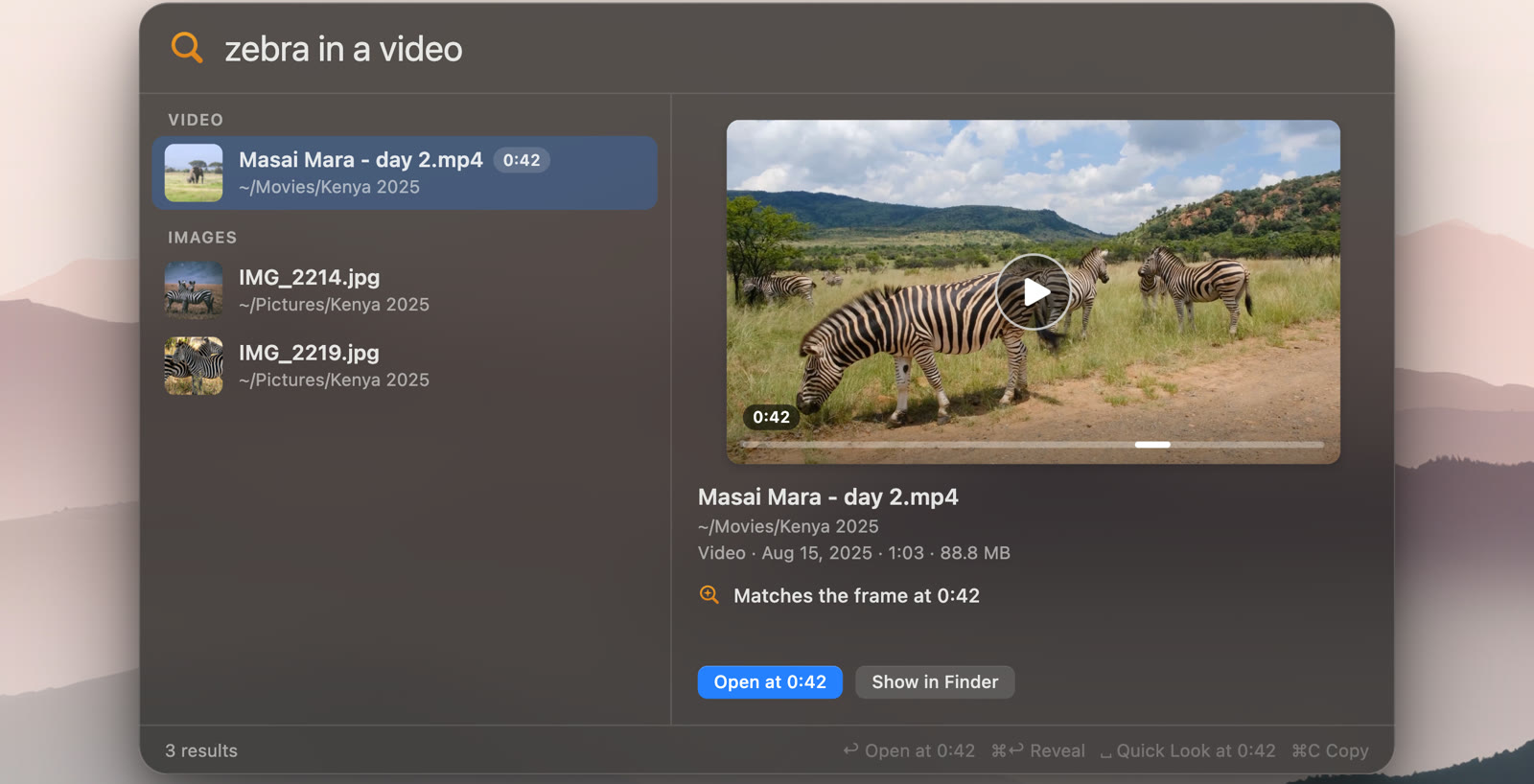
The preview shows the part that matched: the video frame at the moment, the page of a PDF with your words marked, the passage of a document, the picture or the screenshot. A recording plays from the moment, right in the preview. Under it, a line says why the result is there: "Matches the frame at 0:42", "Matches what's heard at 7:55", "Matches the text on page 4", or "Has your words" when it's the exact words that matched.
Results well below the best one fold under "N weaker matches" at the end of the list, so the panel shows what stood out. Open the fold to see them.
Keys
| Mac | Windows and Linux | What it does |
|---|---|---|
| ⇧⌘Space | CtrlShiftSpace | Opens the panel from any app |
| ↓ ↑ | ↓ ↑ | Moves through the results |
| ↩ | Enter | Opens the result: recordings and videos at the moment, code at the line, PDFs at the page where the app allows (Opening results) |
| Space | Space | A big preview at the page or moment, once you've moved to a result |
| ⌘↩ | CtrlEnter | Shows it in Finder, Explorer or your file manager |
| ⌘C | CtrlC (in the window) | Copies the file, to paste anywhere |
| ⌘O | CtrlO | The same search in the bigger window |
| Esc | Esc | Closes the panel |
You can change the shortcut in Settings → General. On GNOME and KDE under Wayland it lives in the desktop's keyboard settings instead; see Install on Linux.
The search window
⌘O (or CtrlO) opens the same search in a window. It has filters by kind (All, Screenshots, Images, Docs, Video, Audio, and Code when code search is on), a grid for pictures and screenshots, and the same preview. Opening DigUp from Applications, the Start menu or your app list shows this window too.
While the first pass runs
You can search from the start. File names are searchable at once, and the newest files are read first, so recent ones turn up before old ones. The menu bar or tray icon shows how far along indexing is; until it's done, a result you expect may simply not be read yet.
Results that look wrong
If a file you know is there doesn't come up, it may be in a part of a folder DigUp doesn't read, or of a kind it doesn't read. Settings → Folders shows "N not read" next to each folder, with the reasons. Troubleshooting covers the usual causes.