Opening results
Where a result opens: recordings and videos at the moment, PDFs at the page, code at the line, and which apps can be told where.
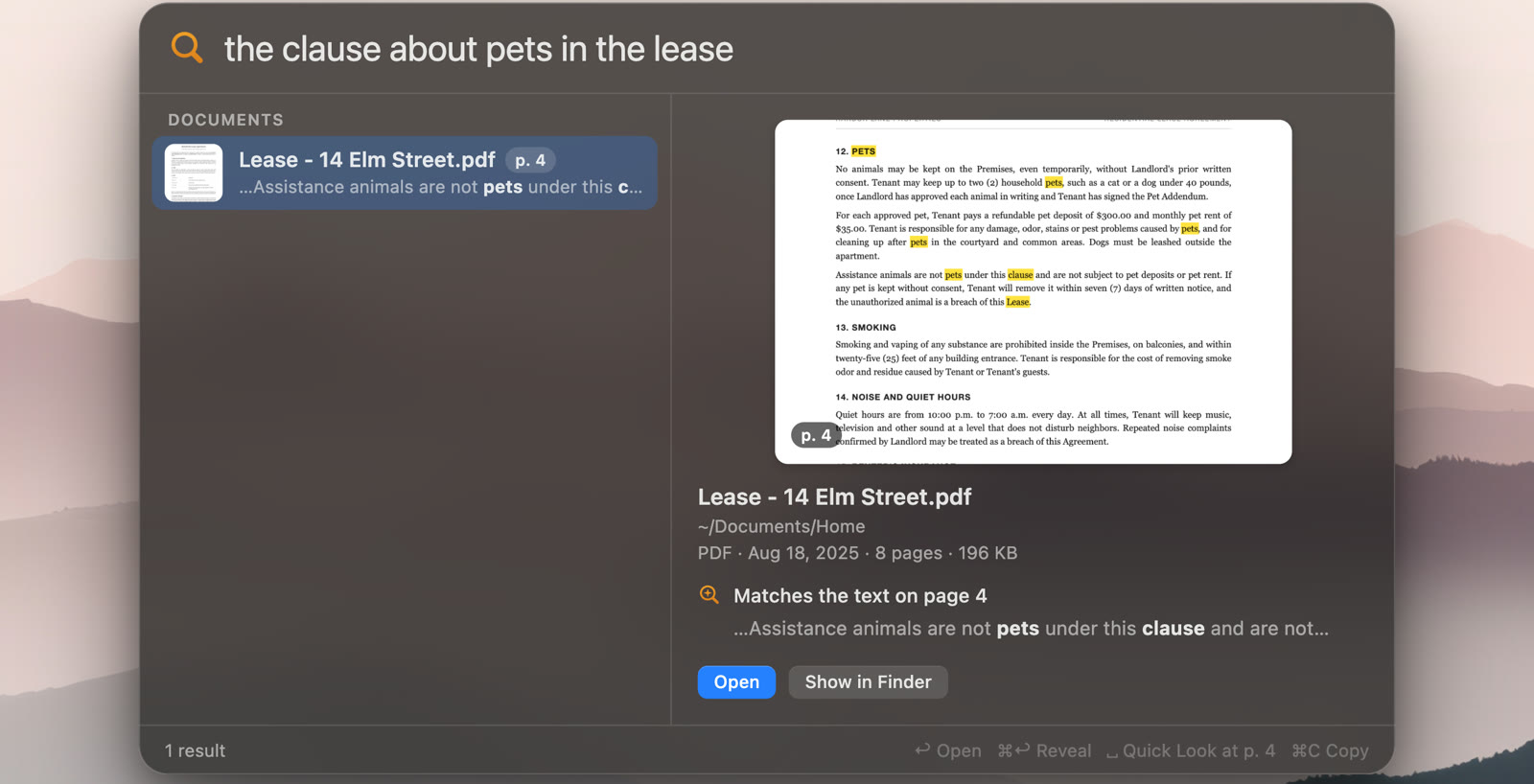
↩ (or Enter) opens the selected result in the app your system opens that kind of file with, at the place that matched when that app can be told where. Space shows a big preview at the page or moment either way, and the preview pane plays a recording from its moment.
Recordings and videos
Mac
A recording or a video opens at its moment in QuickTime Player or IINA. The first time, macOS asks whether DigUp may control QuickTime Player; DigUp uses that only to start it at the moment. If you said no, turn it on in System Settings → Privacy & Security → Automation → DigUp. Other players open the file from the start.
Windows
A recording or a video opens at its moment in VLC, mpv or MPC-HC (and MPC-BE), when it's the app Windows opens that file with. Other players open the file from the start.
Linux
A recording or a video opens at its moment in VLC or mpv, when it's your default app for that file. A player installed as a Flatpak can't be told the moment, so it opens the file from the start.
PDFs
Mac
A PDF opens in Preview with words from the page that matched in its search box, so Preview lists the matches page by page in its sidebar. Preview doesn't jump to the page by itself; Space in DigUp shows Quick Look right at the page.
Windows
A PDF opens at the page in Edge, Chrome, Firefox, Brave, Acrobat or SumatraPDF, when it's the app Windows opens PDFs with. Other viewers open it at the first page.
Linux
A PDF opens at the page in Evince (and Papers, Atril or Xreader), Okular, Firefox, Chrome, Chromium or Brave, when it's your default PDF app. A viewer installed as a Flatpak opens it at the first page.
Code
Code opens in the editor you choose in Settings, at the line that matched: Zed, VS Code, Cursor, Windsurf, VSCodium, Sublime Text and JetBrains IDEs, and on a Mac also Xcode, BBEdit and TextMate, on Windows also Notepad++. See Code search.
Everything else
Pictures, screenshots and documents open in their usual app. ⌘↩ (CtrlEnter) shows the file in Finder, Explorer or your file manager instead, and ⌘C copies the file itself, to paste into a message or another folder.